Jupyter Notebook / JupyterLab
Jupyter Notebook and JupyterLab are popular integrated development environments (IDEs) widely used by data scientists, researchers, and educators. The editors allow users to write and execute code directly from a web browser, making it an excellent tool for data analysis, scientific computing, and machine learning. Currently, this integration is only available for ActiveState Python projects.
Instructions are provided for
- How to integrate a single runtime with Jupyter, and
- How to integrate multiple existing ActiveState runtimes with Jupyter.
Integrating a single runtime
The following method of integrating a single runtime with the Jupyter Notebook/JupyterLab is available for Windows, macOS, and Linux.
Before you begin make sure the following requirements have been met
- Create a Python project using the ActiveState Platform.
- In addition to the other packages needed for your project, include the following
ipykernel
jupyter
jupyterlab
- Click Next > Save Changes to build your project
Setting up your IDE
To launch your editor using your ActiveState runtime as the default interpreter
-
After your project build is complete, open a terminal and go to your working directory
-
In your command line create your project directory by running
state checkout <orgname>/<projectname>- enter into your newly created project folder containing your
activestate.yamlfile - run
state shellto open a secure shell virtual environment for the project
-
Once inside your shell or virtual environment run
jupyter notebookto open a Jupyter Notebook instance, orjupyter labto open a JupyterLab instance
After your Jupyter instance automatically launches in your browser, your ActiveState runtime will be pre-selected as the default interpreter.
Verifying your Jupyter Notebook integration
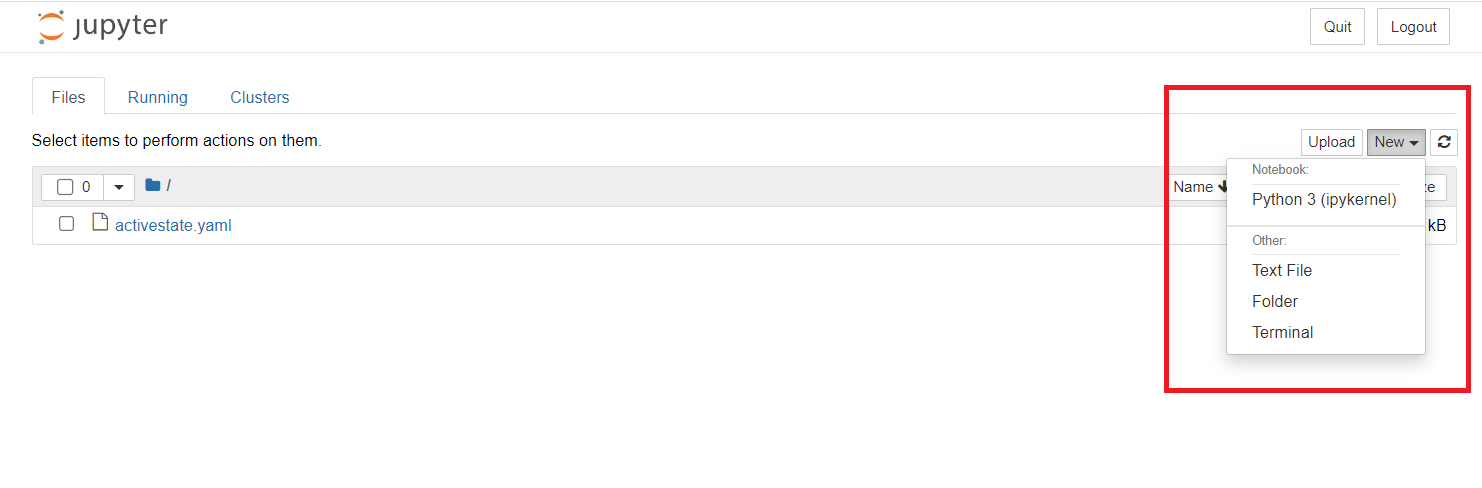
To verify that your ActiveState runtime (or “kernel”) has been successfully integrated into your Jupyter Notebook instance, click on the New dropdown and your ActiveState runtime should be visible, seen below as “Python 3 (ipykernal)”.
Verifying your JupyterLab integration
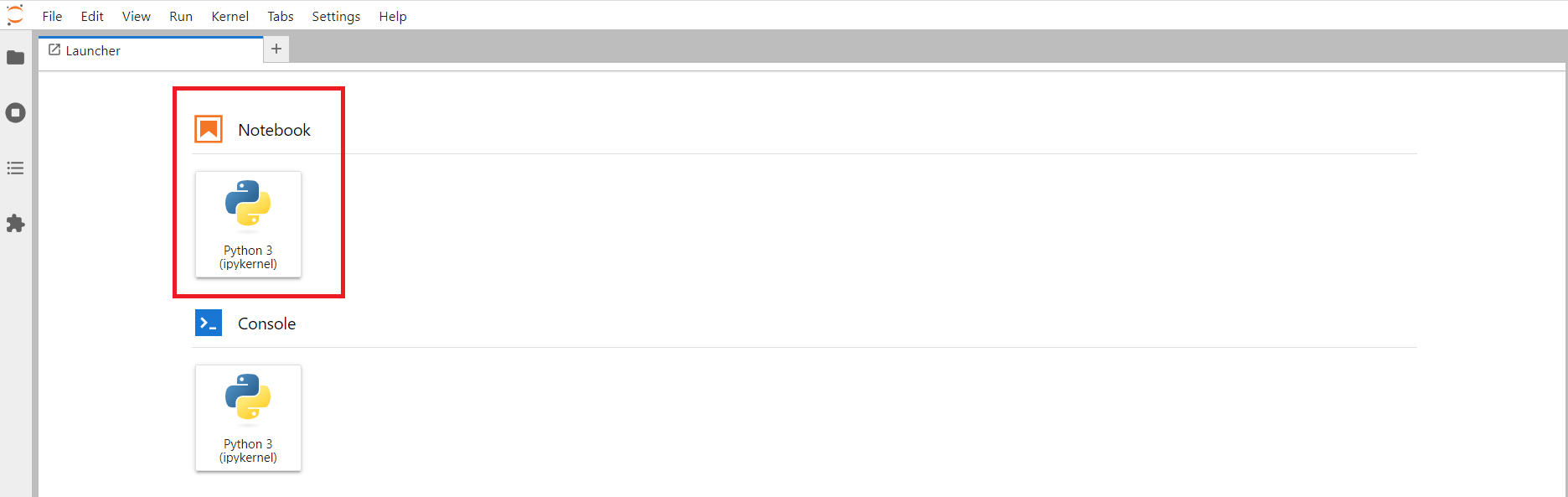
Your ActiveState runtimes will be visible on the Launcher tab.
Integrating multiple runtimes
The following method uses the AS-Notebook tool to sync all existing ActiveState runtimes that have been checked out locally into Jupyter Notebook. Currently, this method is only available to macOS and Linux users.
Before you begin make sure the following requirements have been met
- The ActiveState StateTool is installed.
- Your local Jupyter IDE is searching for kernels in the default paths
- All projects you plan to integrate are checked out locally on your system and have the following packages
ipykernal
jupyter
jupyterlab
Installation
In your terminal use the following command to check out the ActiveState Platform project AS-Notebook in your local working directory (the project includes a Python runtime as well as a copy of Jupyter Notebook).
state checkout ActiveStateSE/AS-Notebook
This will create a new AS-Notebook folder with the necessary files to complete your sync.
Synching your runtimes with Jupyter
Go into the newly created AS-Notebook folder and run
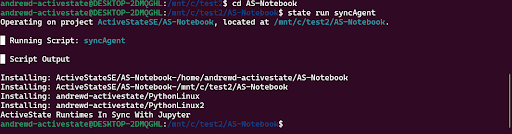
state run syncAgent
This will make all State Tool projects that support Jupyter Notebook visible to any local instance of the IDE. After the script has been completed, you will receive a confirmation message stating ActiveState Runtimes In Synch With Jupyter.
To start a local instance of Jupyter Notebook enter
state exec jupyter notebook
Verifying your integration
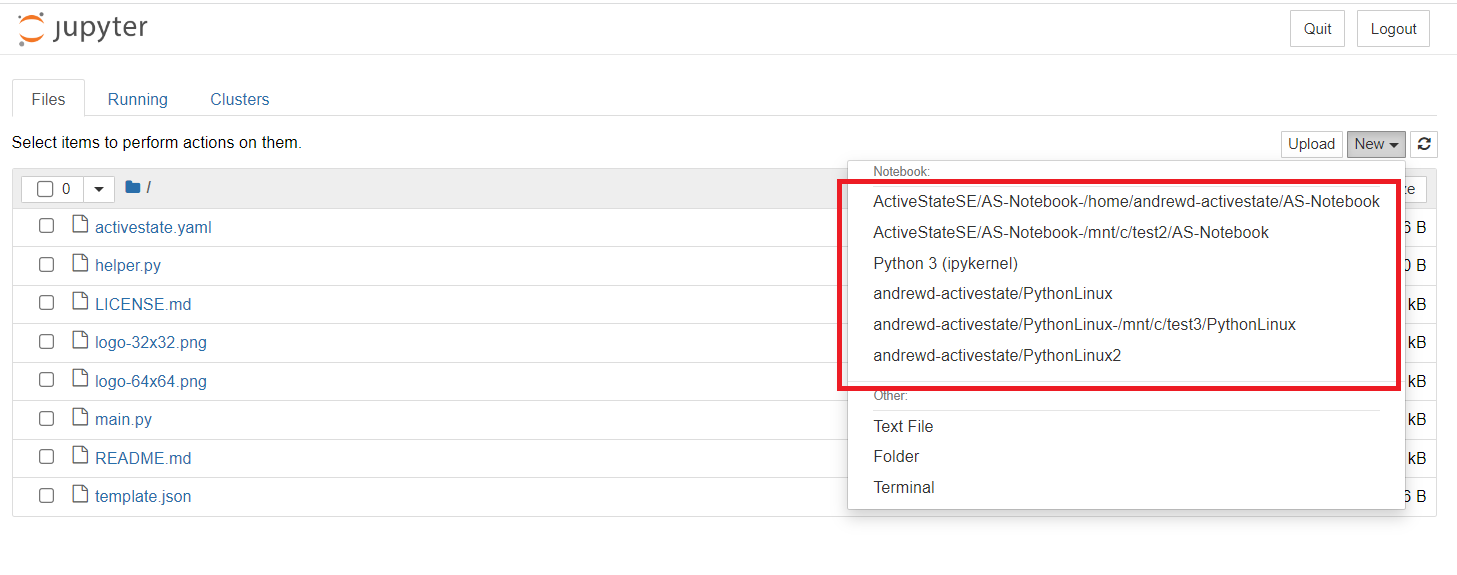
To verify that your ActiveState runtime (or “kernel”) has been successfully integrated into your Jupyter Notebook instance, click on the New dropdown and your synched ActiveState runtimes should be visible (seen below).
Troubleshooting
If your browser fails to launch after running the jupyter notebook or jupyter lab command
- check that you are not deploying from a Linux container. To access the Jupyter instance, copy and paste the URL returned in the output of the command into your browser to launch the Jupyter instance.
- Check that you are using the latest version of Python (3.10.10 or later)
When starting a Jupyter Notebook instance, note that the default python3 ipykernel will be duplicated with the name of the actual runtime (in this case “ActiveStateSE/AS-Notebook-/home/andrewd-activestate/AS-Notebook”).